How to get your calendon event booking link
Every event type you create in Calendon gets its own unique booking link. Share it once and clients can book that specific session directly — no back-and-forth needed.
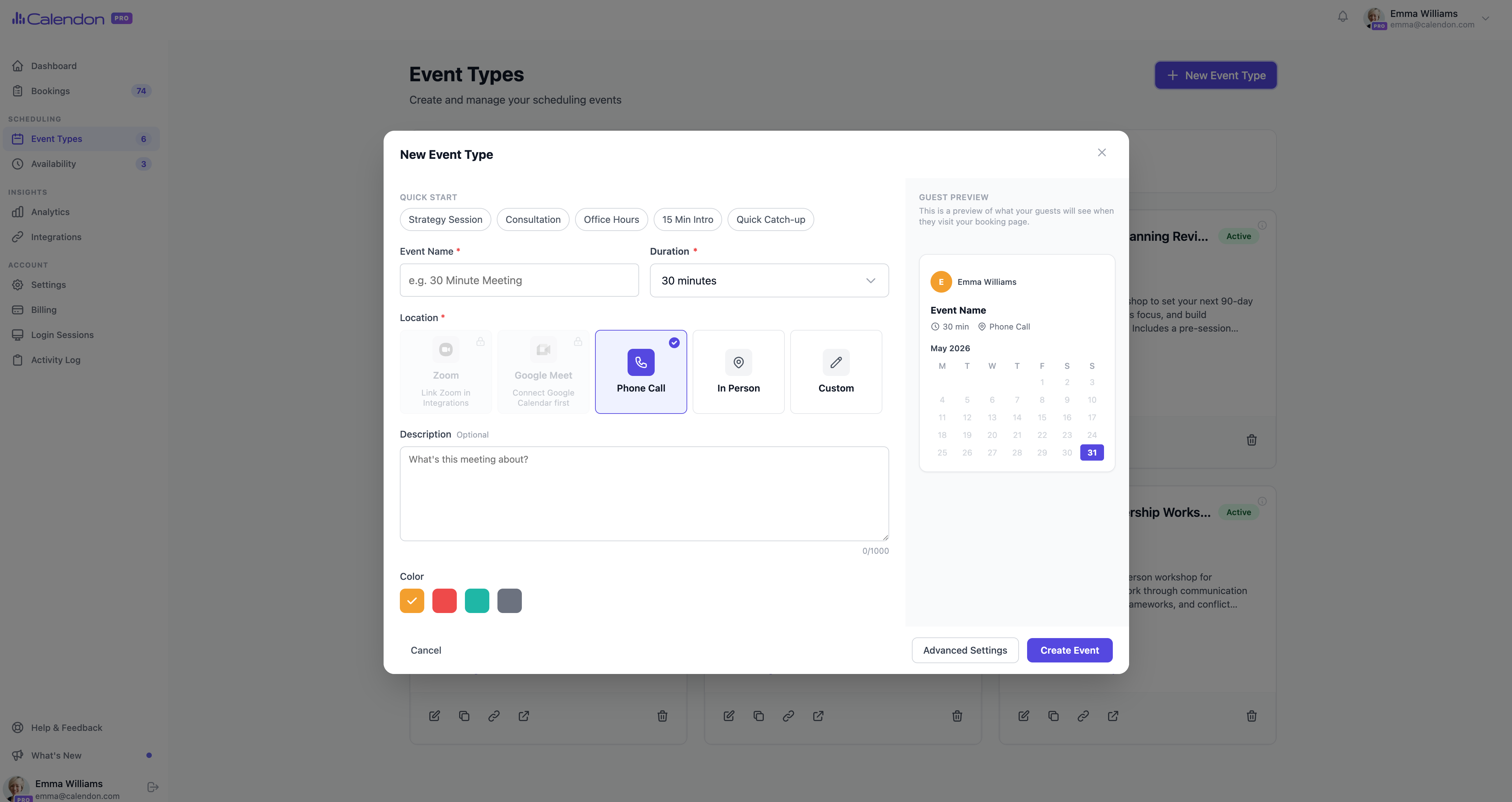
If you have not created an event type yet, start here.
How to get your event booking link
There are two ways to grab the link for any event type.
From the event types listing Go to Event Types in your sidebar. Each event type card has a copy button. Click it and the booking link is copied to your clipboard, ready to paste anywhere.
From the event type page Open any event type and the booking link is shown at the top of the page. You can also click to open it in a new tab and copy the URL directly from your browser.

Each event type has its own link. A 30-minute call and a 60-minute session are separate links, so clients always land on exactly the right booking page.
Share it wherever you want
It is a regular URL. Paste it anywhere you would normally share a link: your email signature, website, social media bio, a WhatsApp message, a proposal, a LinkedIn post. Wherever your clients are, the link works.
Want a cleaner, more memorable link? You can customise the URL slug when creating or editing an event type.

Make sure your availability is set first
Your booking link is only useful if your availability is configured. Calendon uses your availability schedule to decide which time slots to show clients. If you have not set this up yet, learn how to set your availability before sharing your link.
Frequently asked questions
Where do I find my Calendon booking link? Go to Event Types in the sidebar. Each event type card has a copy button. Click it to copy the link instantly, or open the event type to see the full URL at the top of the page.
Can I customise my booking link URL? Yes. You can edit the URL slug when creating or editing an event type in Calendon. A clean slug makes the link easier to share and remember.
Does each event type have a different booking link? Yes. Every event type in Calendon has its own unique link. Clients always land on the correct booking page for that specific session.
What happens if a client tries to book outside my available hours? Calendon only shows time slots that fall within your availability schedule. Slots that are already taken or outside your set hours are never shown. Learn how to set your availability.
Do clients need a Calendon account to book? No. Clients just open your link, pick a time, and confirm. No account or sign-up required on their end.
Simplify your scheduling
Share one link. Let people book a time.